In this article we are going to cover How to install java on Ubuntu 22.04 LTS, How to Install Jenkins on Ubuntu 22.04 LTS,How to configure jenkins on Amazon Ubuntu 22.04 LTS,completely Remove Jenkins from Ubuntu 22.04 LTS.
Table of Contents
What is Jenkins ?
Jenkins is an open-source automation server that is commonly used for continuous integration (CI) and continuous delivery (CD) processes in software development. It allows developers to automate various aspects of the software development lifecycle, including building, testing, and deploying applications. Jenkins is written in Java and provides a web-based interface for managing and configuring automated tasks.
Key features of Jenkins:
- Automation: Jenkins can automate various tasks such as building code, running tests, deploying applications which helps reduce manual work and potential errors, and more. It can be configured to trigger these tasks automatically when code changes are pushed to a version control system (e.g., Git).
- Extensibility: Jenkins has a large and active community that develops and maintains numerous plugins, making it easy to extend and customize its functionality to suit specific project needs.
- Scalability: Jenkins can be distributed across multiple nodes or machines, allowing you to scale your CI/CD infrastructure as needed.
- Community Support: Jenkins has a large and active community of users and contributors who provide support, share plugins, and contribute to its development.
- Security: Jenkins offers security features to protect the automation server and the code it manages, including user authentication, access control, and encryption.
- Monitoring and Reporting: Jenkins provides detailed logs, reports, and notifications to help developers track the progress of their builds and deployments, as well as identify and address any issues that may arise.
- Pipeline Support: Jenkins supports the creation of continuous integration/continuous delivery (CI/CD) pipelines, which define the sequence of steps required to build, test, and deploy software using a domain-specific language called Jenkins Pipeline. This allows you to define your entire CI/CD process as code, making it easier to version control and manage.
Jenkins has been widely adopted in the software development industry because of its flexibility, extensibility, and the support it provides for automating essential DevOps processes. It helps development teams deliver software more efficiently and with fewer errors by automating and orchestrating key tasks throughout the software development lifecycle.
Prerequisites:
- Ubuntu server 22.04 LTS
- Atleast 1 GB RAM
- JDK 1.8 or Higher version is supported
- Open Port 8080
How to install Jenkins on Ubuntu 22.04 LTS
Step #1:How to install java on Ubuntu 22.04 LTS instance
updates all installed software packages on your Ubuntu 22.04 LTS instance
sudo apt update
installs OpenJDK 11 on your Ubuntu 22.04 LTS instance, which is required for Jenkins to run.
sudo apt install openjdk-17-jre
To check the java version
java -version
Step #2:How to Install Jenkins on Ubuntu 22.04 LTS instance
Download the Jenkins GPG key and add it to the keyring
curl -fsSL https://pkg.jenkins.io/debian-stable/jenkins.io-2023.key | sudo tee /usr/share/keyrings/jenkins-keyring.asc > /dev/null
Add the Jenkins repository to your system’s list of package sources, specifying the path to the keyring file for package signing
echo deb [signed-by=/usr/share/keyrings/jenkins-keyring.asc] https://pkg.jenkins.io/debian-stable binary/ | sudo tee /etc/apt/sources.list.d/jenkins.list > /dev/null
Update the package repository to include the newly added Jenkins repository
sudo apt-get update
installs Jenkins on your Ubuntu 22.04 LTS instance.
sudo apt-get install jenkins
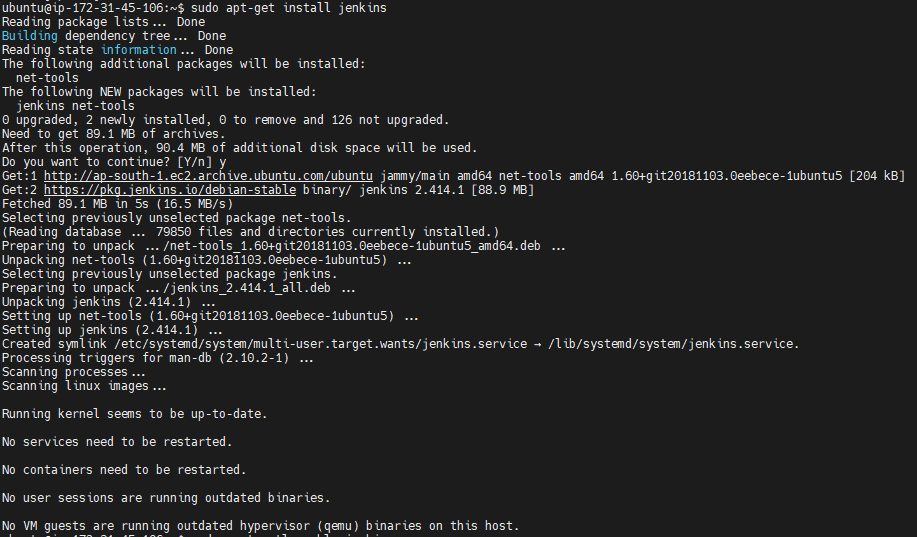
Setup Jenkins as a Daemon: Jenkins is automatically set up as a daemon during installation, which means it will start automatically on system boot. You can check the details of the Jenkins systemd service unit by running the following command:
systemctl cat jenkins
You can check the status of the Jenkins service using the command:
sudo systemctl status jenkins

Step #3:How to configure Jenkins on Ubuntu 22.04 LTS
Access Jenkins Web Interface: Open a web browser and navigate to the Jenkins web interface using your Ubuntu 22.04 LTS instance’s public IP address and port 8080. Replace <your_server_public_IP> with your actual server’s public IP address.Ex: http://123-45-67-89:8080
Unlock Jenkins: On your first visit, Jenkins will require you to unlock it to set up the initial administrator password. You can find this password in a file on your Ubuntu 22.04 LTS instance.

To retrieve it, SSH into your EC2 instance using the appropriate credentials and run the following command to print the password:
sudocat/var/lib/jenkins/secrets/initialAdminPassword

Copy the generated password from the terminal and Return to the Jenkins web interface in your browser and paste the unlock key into the “Administrator password” field. Then, click “Continue.”

Customize Jenkins:You will be given options to install suggested plugins or select specific plugins. You can choose either option based on your requirements. Installing suggested plugins is a good start for most users.

Create an Admin User: After the plugins are installed, you will be prompted to create an admin user. Fill in the required information, such as username, password, full name, and email address. Or you can click on skip and continue as admin.

Instance Configuration: Configure the URL for Jenkins, which is typically derived automatically. You can leave it as the default unless you have specific requirements.

Click “Save and Finish” to complete the setup.
You will see a “Start using Jenkins” button.

Click on start using Jenkins to access the Jenkins dashboard.

Now, Jenkins is configured and ready to use on your Ubuntu 22.04 LTS instance. You can start creating and configuring Jenkins jobs and pipelines for your projects. Make sure to secure your Jenkins instance further by following best practices, such as restricting access, setting up authentication, and configuring security settings as needed for your environment.
Note: If Jenkins fails to start because the default port (8080) is already in use by another service or application, you can indeed change the port that Jenkins listens on by following the steps you provided.
Go to your terminal and Run the following command to create or edit the systemd override configuration file for Jenkins:
sudo systemctl edit jenkins
This command will open a text editor where you can specify custom configuration for the Jenkins service.
Add the following lines to the editor to specify a new port for Jenkins. For example, if you want Jenkins to listen on port 8081:
[Service]
Environment="JENKINS_PORT=8081"
You can replace “8081” with any available port that you prefer.
Save and exit the text editor.
Reload the systemd configuration to apply the changes:
sudo systemctl daemon-reload
Restart the Jenkins service to apply the new port configuration:
sudo systemctl restart jenkins
Now, Jenkins should be listening on the specified port (8081 in this example). You can access the Jenkins web interface by navigating to:
http://your_server_ip_or_domain:8081
How to completely Remove Jenkins from Ubuntu 22.04 LTS instance (Optional Step)
To remove Jenkins from an Ubuntu 22.04 LTS instance, you can use the following commands. These commands will uninstall Jenkins and its associated files:
Stop the Jenkins service (if it’s running):
sudo systemctl stop jenkins
Remove the Jenkins package:
sudo apt remove jenkins
Remove the Jenkins configuration and data:
sudo rm -rf /var/lib/jenkins
Remove the Jenkins repository file:
sudo rm -f /etc/yum.repos.d/jenkins.repo
Clean the apt cache to remove any residual files:
sudo apt clean all
Jenkins should now be completely removed from your Ubuntu 22.04 LTS instance.
Conclusion:
In this article we have covered How to install java on Ubuntu 22.04 LTS, How to Install Jenkins on Ubuntu 22.04 LTS,How to configure jenkins on Ubuntu 22.04 LTS,completely Remove Jenkins from Ubuntu 22.04 LTS.
Related Articles:

Thanks Priti, I repeat all your instructions and the jenkin´s installation/removing was all rigth.
ps: um small problems in that instruction : sudo systemctl status Jenkins (Jenkins with “J” upper case)
great
Thanks for update.