In this article we are going to cover How to setup Minikube on Ubuntu 22.04 LTS, Installation of kubectl and Helm on minikube,Create Helm Chart for NodeJS app.Install Node.JS helm chart, modify values.yaml, deployment.yaml and services.yaml in helm chart, Access Node.JS app from browser using kubectl port-forward.
Table of Contents
Prerequisites
- AWS Account with Ubuntu 22.04 LTS EC2 Instance
- Minikube and kubectl Installed
Install Minikube and kubectl by following the official documentation for your operating system:
Install Minikube on Ubuntu 22.04 LTS
- Helm Installed:
Install Helm by following the official documentation:
Step #1:Create Helm Chart for NodeJS App
We will create a Helm chart node-app-chart for the Node.js application. To create the Helm chart, run the below command
helm create node-app-chartOutput:

using above command it will create node-app-chart folder, to verify run below command
lsOutput:
node-app-chartNavigate to node-app-chart directory and list out its files using ls command
cd node-app-chartlsOutput:

Step #2:Modify Helm Chart Files
Lets modify values.yaml, deployment.yaml and service.yaml files. You can modify it in text editor like vi, vim, nano, etc.
nano values.yaml
add the Image and service block in values.yaml as shown below
#Default values for node-app-chart.

#This is a YAML-formatted file.

#Declare variables to be passed into your templates.

replicaCount: 1

image:
    repository: devopshint/node-app

    pullPolicy: IfNotPresent
    # Overrides the image tag whose default is the chart appVersion.
    tag: "latest"

imagePullSecrets: []
nameOverride: ""
fullnameOverride: ""

serviceAccount:
   # Specifies whether a service account should be created
   create: true
   # Automatically mount a ServiceAccount's API credentials?
   automount: true
   # Annotations to add to the service account
   annotations: {}
   # The name of the service account to use.
   # If not set and create is true, a name is generated using the fullname template
   name: ""

podAnnotations: {}
podLabels: {}

podSecurityContext: {}
    # fsGroup: 2000

securityContext: {}
   # capabilities:
   # drop:
   # - ALL
   # readOnlyRootFilesystem: true
   # runAsNonRoot: true
   # runAsUser: 1000

service:
   type: NodePort
   port: 80
   targetPort: 8080
   protocol: TCP
   name: node-app

ingress:
   enabled: false
   className: ""
   annotations: {}
       # kubernetes.io/ingress.class: nginx
       # kubernetes.io/tls-acme: "true"
   hosts:
       - host: chart-example.local
       paths:
           - path: /
             pathType: ImplementationSpecific
   tls: []
   # - secretName: chart-example-tls
   # hosts:
   # - chart-example.local

resources: {}
   # We usually recommend not to specify default resources and to leave this as a conscious
   # choice for the user. This also increases chances charts run on environments with little
   # resources, such as Minikube. If you do want to specify resources, uncomment the following
   # lines, adjust them as necessary, and remove the curly braces after 'resources:'.
   # limits:
   # cpu: 100m
   # memory: 128Mi
   # requests:
   # cpu: 100m
   # memory: 128Mi

autoscaling:
   enabled: false
   minReplicas: 1
   maxReplicas: 100
   targetCPUUtilizationPercentage: 80
   # targetMemoryUtilizationPercentage: 80

#Additional volumes on the output Deployment definition.

volumes: []

#- name: foo

#secret:

#secretName: mysecret

#optional: false

#Additional volumeMounts on the output Deployment definition.

volumeMounts: []

#- name: foo

#mountPath: "/etc/foo"

#readOnly: true

nodeSelector: {}

tolerations: []

affinity: {}
Now, navigate to the templates directory and list out its files.
cd templatesls
And to modify deployment.yaml use following command to open it.
nano deployment.yamlOutput:

refer the values.yaml values like docker image, repository, tag and target port number.
apiVersion: apps/v1
kind: Deployment
metadata:
  name: {{ include "node-app-chart.fullname" . }}
  labels:
    {{- include "node-app-chart.labels" . | nindent 4 }}
spec:
  {{- if not .Values.autoscaling.enabled }}
  replicas: {{ .Values.replicaCount }}
  {{- end }}
  selector:
    matchLabels:
      {{- include "node-app-chart.selectorLabels" . | nindent 6 }}
  template:
    metadata:
      {{- with .Values.podAnnotations }}
      annotations:
        {{- toYaml . | nindent 8 }}
      {{- end }}
      labels:
        {{- include "node-app-chart.labels" . | nindent 8 }}
	{{- with .Values.podLabels }}
        {{- toYaml . | nindent 8 }}
        {{- end }}
    spec:
      {{- with .Values.imagePullSecrets }}
      imagePullSecrets:
        {{- toYaml . | nindent 8 }}
      {{- end }}
      serviceAccountName: {{ include "node-app-chart.serviceAccountName" . }}
      securityContext:
        {{- toYaml .Values.podSecurityContext | nindent 8 }}
      containers:
        - name: {{ .Chart.Name }}
          securityContext:
            {{- toYaml .Values.securityContext | nindent 12 }}
          image: "{{ .Values.image.repository }}:{{ .Values.image.tag | default .Chart.AppVersion }}"
          imagePullPolicy: {{ .Values.image.pullPolicy }}
          ports:
              - name: http
                containerPort: {{ .Values.service.targetPort }}
                protocol: TCP
          livenessProbe:
            httpGet:
              path: /
              port: http
          readinessProbe:
            httpGet:
              path: /
              port: http
          resources:
            {{- toYaml .Values.resources | nindent 12 }}
          {{- with .Values.volumeMounts }}
          volumeMounts:
            {{- toYaml . | nindent 12 }}
          {{- end }}
      {{- with .Values.volumes }}
      volumes:
        {{- toYaml . | nindent 8 }}
      {{- end }}
      {{- with .Values.nodeSelector }}
      nodeSelector:
        {{- toYaml . | nindent 8 }}
      {{- end }}
      {{- with .Values.affinity }}
      affinity:
        {{- toYaml . | nindent 8 }}
      {{- end }}
      {{- with .Values.tolerations }}
      tolerations:
        {{- toYaml . | nindent 8 }}
      {{- end }}
press ctrl+x to save and press yes, then press enter
In services.yaml values like port, targetPort,protocol and service name, will refer from values.yaml
apiVersion: v1
kind: Service
metadata:
     name: {{ include "node-app-chart.fullname" . }}
     labels:
       {{- include "node-app-chart.labels" . | nindent 4 }}
spec:
    type: {{ .Values.service.type }}
    ports:
        - port: {{ .Values.service.port }}
          targetPort: {{ .Values.service.targetPort }}
          protocol: {{ .Values.service.protocol }}
          name: {{ .Values.service.name }}
    selector:
       {{- include "node-app-chart.selectorLabels" . | nindent 4 }}
We have modified in node-app helm chart.
Exit the directories (node-app-chart and templates) using following command
cdOutput:

Step #3:Install NodeJS Helm Chart on Minikube
Run the following command to install helm chart.
helm install nodeapp ./node-app-chartOutput:

Check pods, deployment and service
After successfully run our workflow lets check pods, deployment and service using below kubectl commands:
For checking pods, run following command
kubectl get poOutput:

For checking deployments, run following command
kubectl get deployOutput:

For checking services, run following command
kubectl get svcOutput:

Step #4:Access the NodeJS Application on browser
For accessing the Nodejs application on browser use following command.
kubectl port-forward --address 0.0.0.0 svc/nodeapp-node-app-chart 8080:80Output:

This command is used to forward traffic from port 8080 on your local machine to port 80 on the specified service nodeapp-node-app-chart. This can be useful for accessing a service running in your Kubernetes cluster from your local machine.
To access the application on Browser write the ip address:port number in url.
ip address is the public ip address of your Minikube EC2 instance created on AWS and port number which is 8080 which we have used in forwarding Node.JS pod
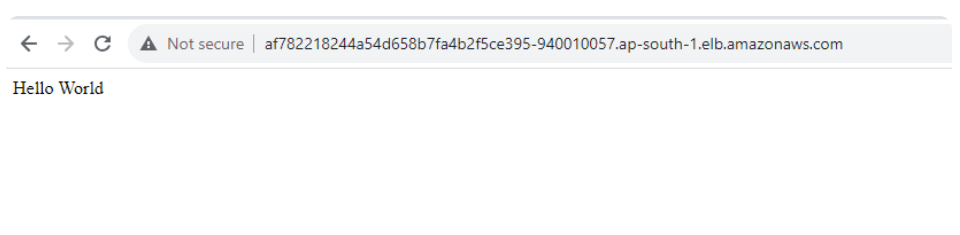
Welcome page will be displayed as shown in the following image.
Conclusion:
In this article we have covered How to setup Minikube on Ubuntu 22.04 LTS, Installation of kubectl and Helm on minikube,Create Helm Chart for Node.JS app.Install Node.JS helm chart, modify values.yaml, deployment.yaml and services.yaml in helm chart, Access Node.JS app from browser using kubectl port-forward.
Related Articles:
