In this article we are going to cover Build Java Project using Maven Jenkins Freestyle Job, Install GitHub Integration and Maven integration Plugins in Jenkins, Configure Source Code Management, Configure the Build steps, Configure Post-Build Actions, Monitor Build Progress.
What is Maven?
Apache Maven is a widely-used build automation and project management tool primarily used for Java projects, although it can be adapted for other languages and frameworks as well. It simplifies and automates the build process of software projects, making it easier to manage dependencies, compile code, package applications, and perform various other tasks related to software development.
What is build a Java project using Maven in a Jenkins Freestyle job?
Building a Java project using Maven in Jenkins with a Freestyle job involves configuring Jenkins to automate the build process of your Java application using Apache Maven.
Prerequisites:
- Jenkins Installed: Ensure Jenkins is installed and running.
- Maven Installed: Make sure Maven is installed on the machine where Jenkins is running.
- Java Project with Maven: Have a Java project configured with a pom.xml file that describes the project and its dependencies. A Java project with Maven hosted in a version control system like Git.
Build Java Project using Maven Jenkins Freestyle Job
Step #1:Log into Jenkins:
Open your web browser and navigate to your Jenkins instance.
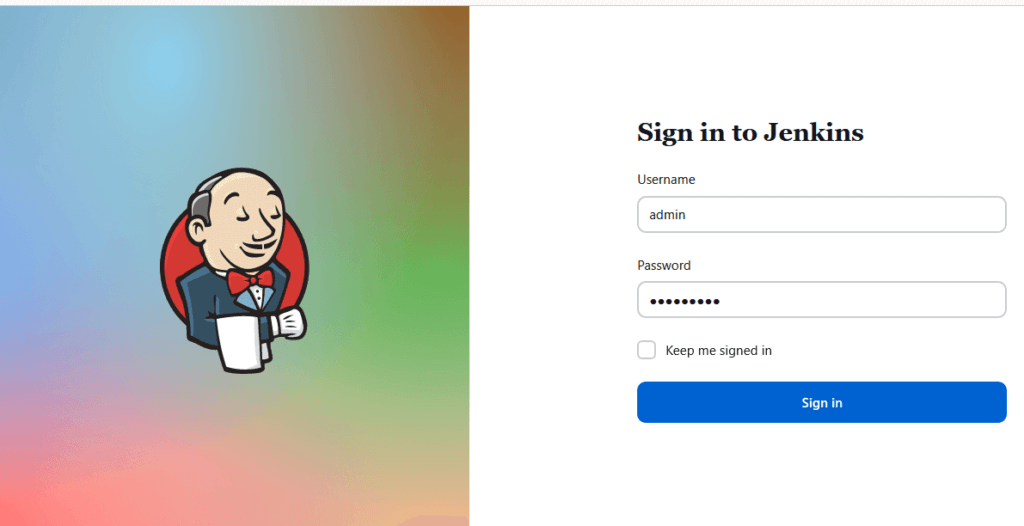
Step #2:Install GitHub Integration and Maven integration Plugins in Jenkins
To build Java project with maven we need to install some plugins like,
- GitHub Integration Plugin
- Maven Integration Plugin
To install plugins follow below steps
Navigate to Dashboard->> Manage Jenkins ->> Manage Plugin
Now search for “GitHub Integration Plugin” and “Maven integration plugin” and click on checkbox after that click on Download now and install after restart.

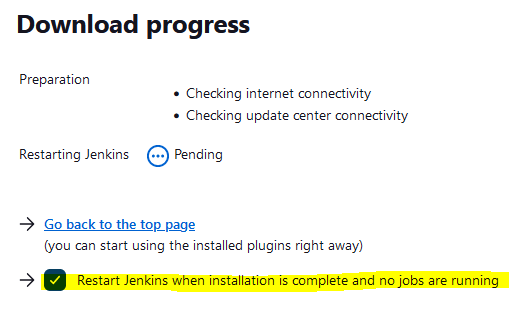
Once the plugins are downloaded successfully. So now click on Restart Jenkins checkbox.
Please wait while Jenkins is restarting.
Step #3:Create a New Freestyle Project in Jenkins
Click on “New Item” in the Jenkins dashboard.

Enter a name for your project (e.g., “Java Maven Project”).
Select “Freestyle project” and click “OK”.

Step #4:Configure Source Code Management for Build Java Project using Maven Jenkins Freestyle Job
In the job configuration page, scroll down to the “Source Code Management” section.
Select your version control system. For this example, we’ll use Git.
Enter the URL of your Git repository (e.g., https://github.com/yourusername/yourrepository.git). If your repository requires authentication, provide the credentials.
Specify the branch to build (e.g., “master” or another branch of your choice).

Step #5:Configure the Build steps for Build Java Project using Maven Jenkins Freestyle Job
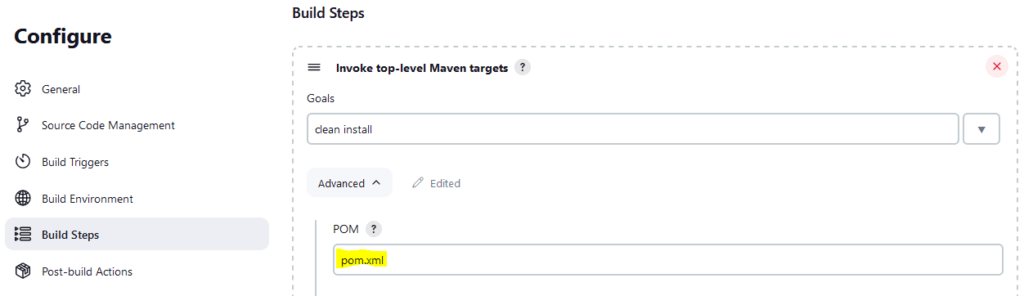
Add Build Step: In the “Build” section, click on “Add build step” and choose “Invoke top-level Maven targets.”

Configure Maven Build: In the “Goals” field, enter the Maven goals you want to execute (e.g., clean install). Specify the path to your pom.xml file. You can use the ${WORKSPACE} variable to refer to the Jenkins workspace where the code is checked out. For example: ${WORKSPACE}/path/to/pom.xml.
Step #6:Configure Post-Build Actions for Build Java Project using Maven Jenkins Freestyle Job
Archive Artifacts: In the “Post-build Actions” section, click on “Add post-build action” and select “Archive the artifacts.”

In the “Files to archive” field, enter the relative path to the JAR or WAR file that Maven generates (e.g., target/*.jar or target/*.war).

Step #7:Save and Build
- Save the Configuration: Click on “Save” to save the job configuration.
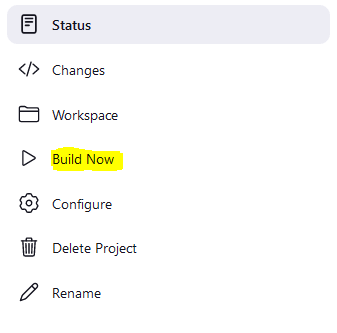
- Trigger the Build: After saving the job configuration, you can manually trigger the build by clicking “Build Now” on the job’s dashboard page.
Step #8:Monitor Build Progress for Build Java Project using Maven Jenkins Freestyle Job
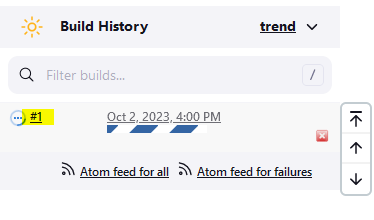
View Console Output: Click on the build number in the “Build History” section to view the console output. You can monitor the progress and identify any issues during the build process.
Console output:

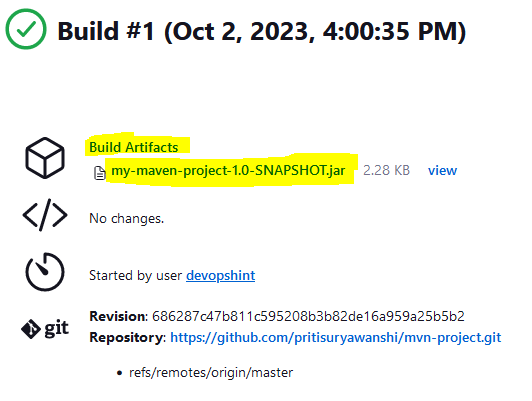
Check Artifacts: If the build is successful, you can go to the “Build Artifacts” section in the job page to download the archived artifacts.
That’s the detailed process for configuring a Jenkins Freestyle job to build a Java project using Maven.
Conclusion:
In this article we have covered Build Java Project using Maven Jenkins Freestyle Job, Configure Source Code Management, Configure the Build steps, Configure Post-Build Actions, Monitor Build Progress.
Related Articles:
